
Spelling variations
For words with variant spelling, refer to dictionaries, such as:
Words and phrases to avoid
- Buzzwords or technical jargon, even industry-wide.
- Undefined acronyms. The exception is commonly used acronyms, such as PDP, HTML, or HTTP.
- Phrases with filler words and excessive politeness.
- Evaluative phrases. For example, “it’s easier” or “a more convenient way to do something”.
- Starting all sentences with the same phrase.
- Attributing human qualities to software or devices.
- Using “and so on” and “etc.” when listing.
| ❌ | ✅ |
|---|---|
| Please note that you should upload product images first. | Upload product images first. |
| You can download the sales report by clicking the Download report button. You can find the details on your latest sales in the Most recent column of this report. | To see the details:
|
| This block tells you about product characteristics. | You can see product characteristics in the Product details block. |
UI elements
Badge
| Image | Description |
|---|---|
|
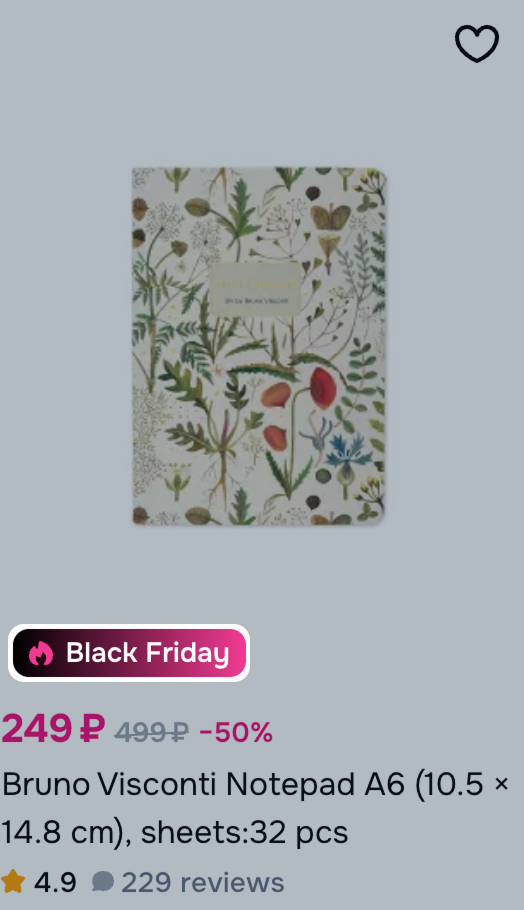
Appears on the PDP and indicates that the product participates in promotion campaigns. Use the word "badge" in seller documentation and don't replace it with synonyms. When describing this element in customer documentation, use the word "tag". Example The  badge marks products on sale. badge marks products on sale. |
Block
| Image | Description |
|---|---|
|
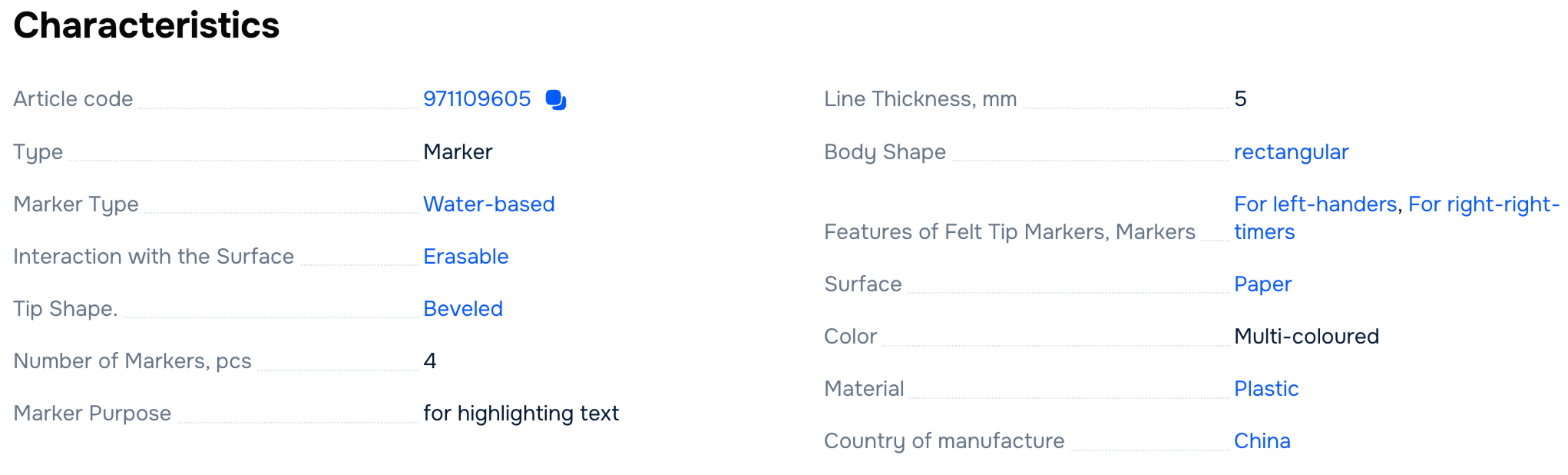
Shows a group of related elements. For example, product information grouped in the Characteristics block. Write block names in bold and without quotation marks. |
Button
| Image | Description |
|---|---|

|
Starts an action when clicked. Don't use the word "button" in documentation. Instead, refer to the text that appears on the button. Example Click Add to cart. |
Checkbox
| Image | Description |
|---|---|
|
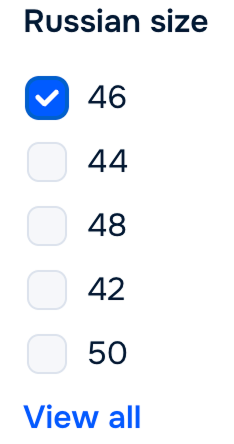
Allows users to select one or more options. Don't use the words "checkbox," "tick box", or "checkmark" in documentation. Instead, describe the action performed by the user, for example, selecting an option or giving consent. Use verbs like "select" or "mark". Examples Select a size. Mark the sizes in the list. |
Field
| Image | Description |
|---|---|

|
Allows users to enter text, for example, in forms or search queries. If the field name clearly indicates what to enter, omit the word "field". Example Enter the article code, SKU, or product name. |
Icon
| Image | Description |
|---|---|

|
Represents a file, action, or tool. If you can't add icon image, describe its' appearance or functionality. In this case, use the word "icon". Example In the bottom menu, click  . . To open messages, click the chat icon in the top right corner. |
PDP
| Image | Description |
|---|---|
|
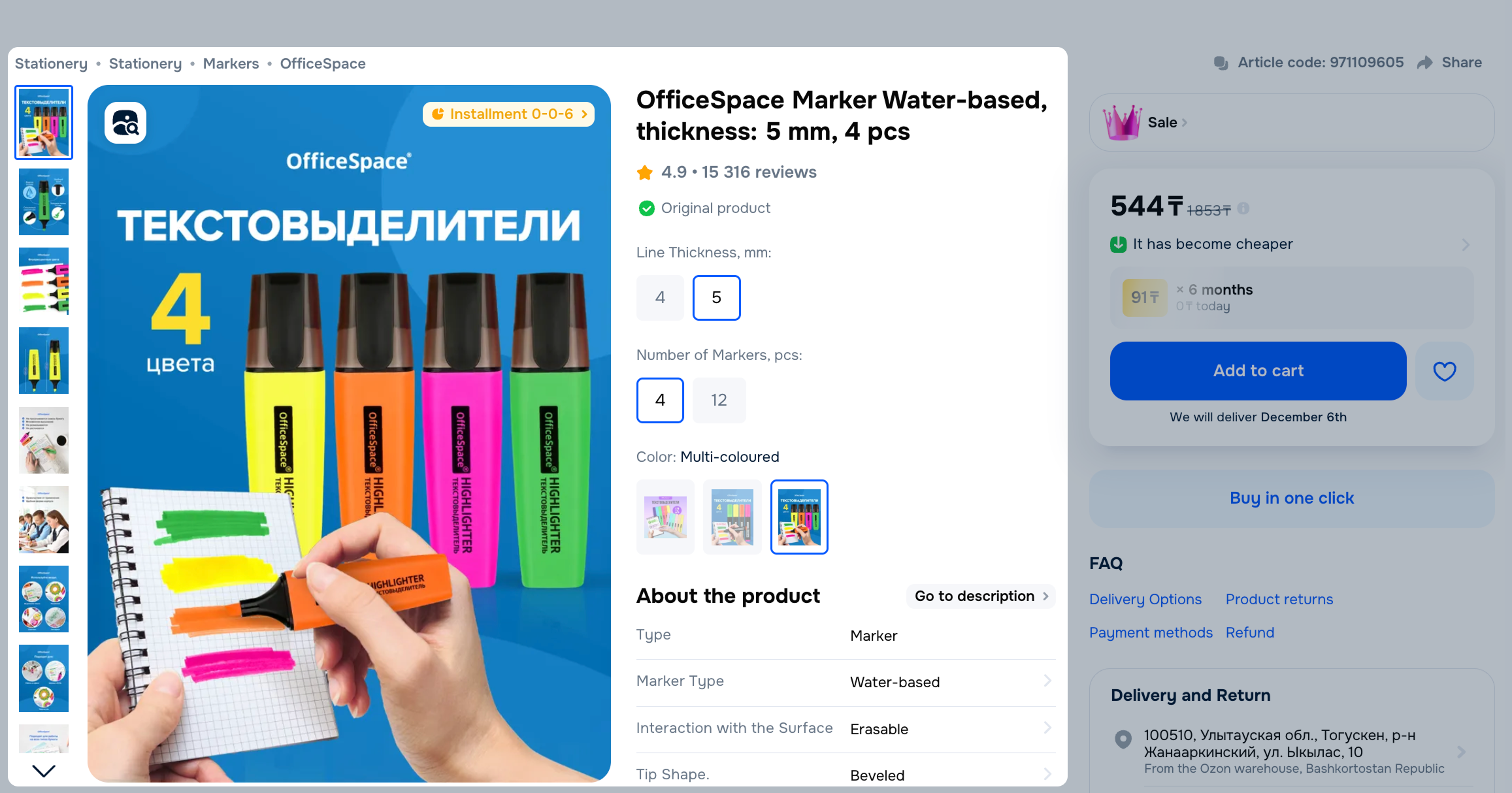
Contains key information about a product, coupon, or warehouse. Write "on the PDP", not "in the PDP". Example On the PDP, users can ask questions about the product and its characteristics. |
Section
| Image | Description |
|---|---|
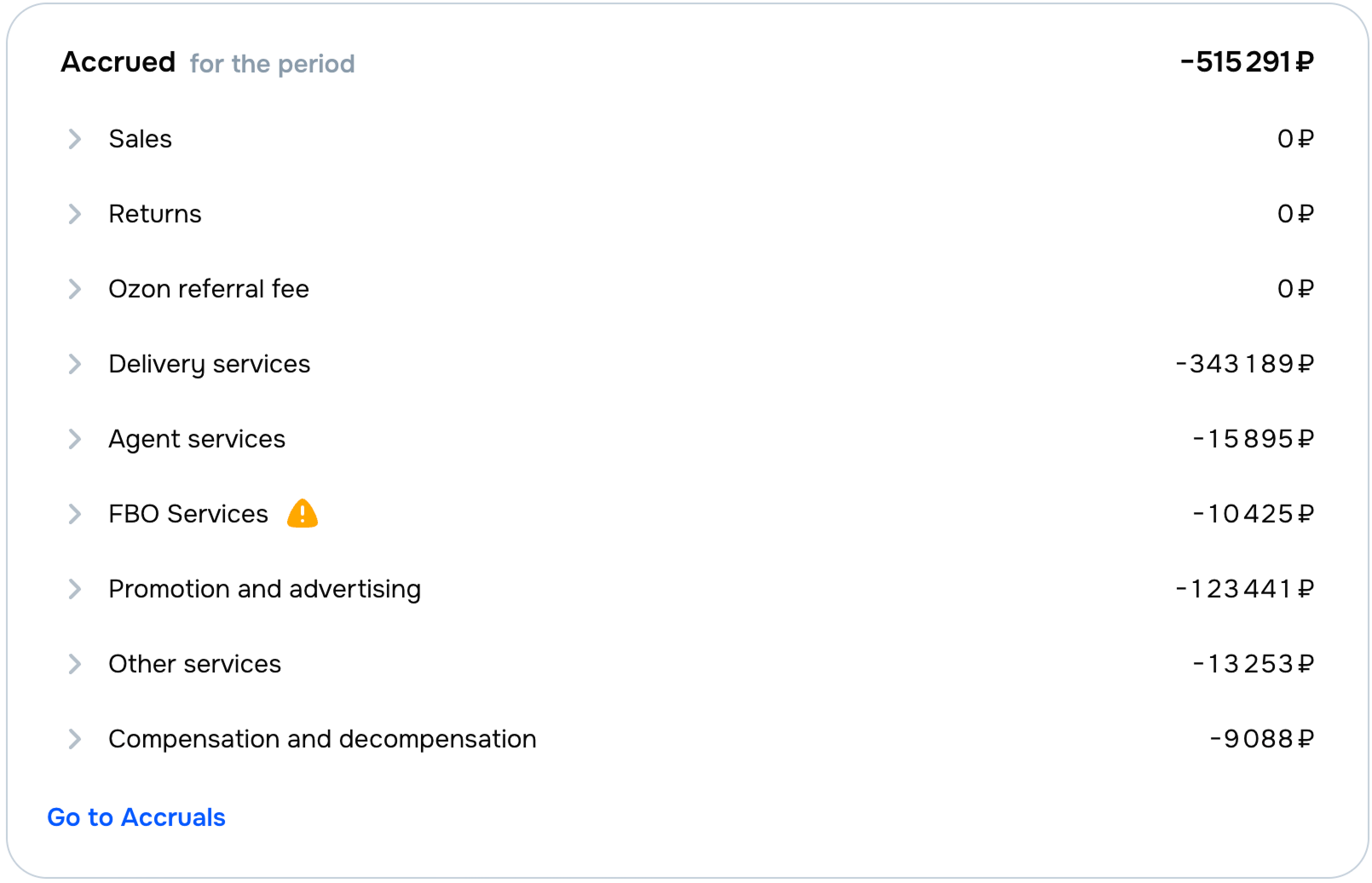
|
Contains a tool or combines several subsections on a single topic. Use the word "section" in documentation to help users navigate the interface. Example In your account, open the Accrued section. |
Tab
| Image | Description |
|---|---|
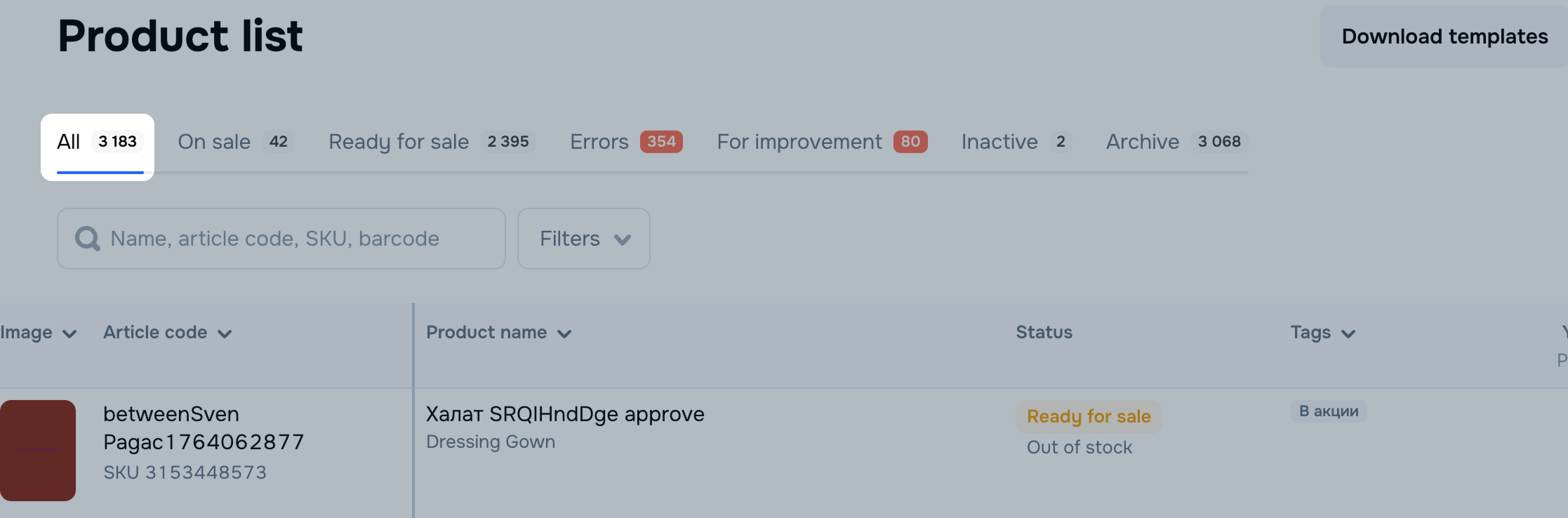
|
Allows users to navigate between pages within a section. Use the word "tab" in documentation to help users navigate the interface. Example In the Product list section, open the All tab. |
Toggle
| Image | Description |
|---|---|

|
Turns an option on or off. Don't use the word "toggle" in documentation. Instead, describe the action performed by the toggle. Use verbs like "enable" or "activate". Example Enable email notifications. |
Widget
| Image | Description |
|---|---|
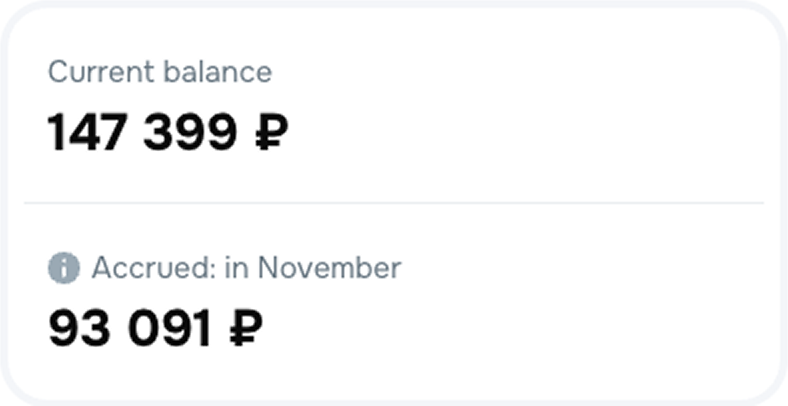
|
Displays information dynamically without navigating to other sections. Use the word "widget" in documentation and don't replace it with synonyms. Example You can see the current balance on the Finance widget. |